
Your cover
Your Cover is the home page of the app — see the classes you need covering, the classes you’re covering, and everything you need to know about each one.
4 min read
Cover I need and I’m covering
The Your Cover tab is the home page for the app, giving you an overview of cover activity. Across the top you will see two sections:
Cover I need
The classes you need covering and have posted cover requests for.
I’m covering
The classes you have said you can cover.
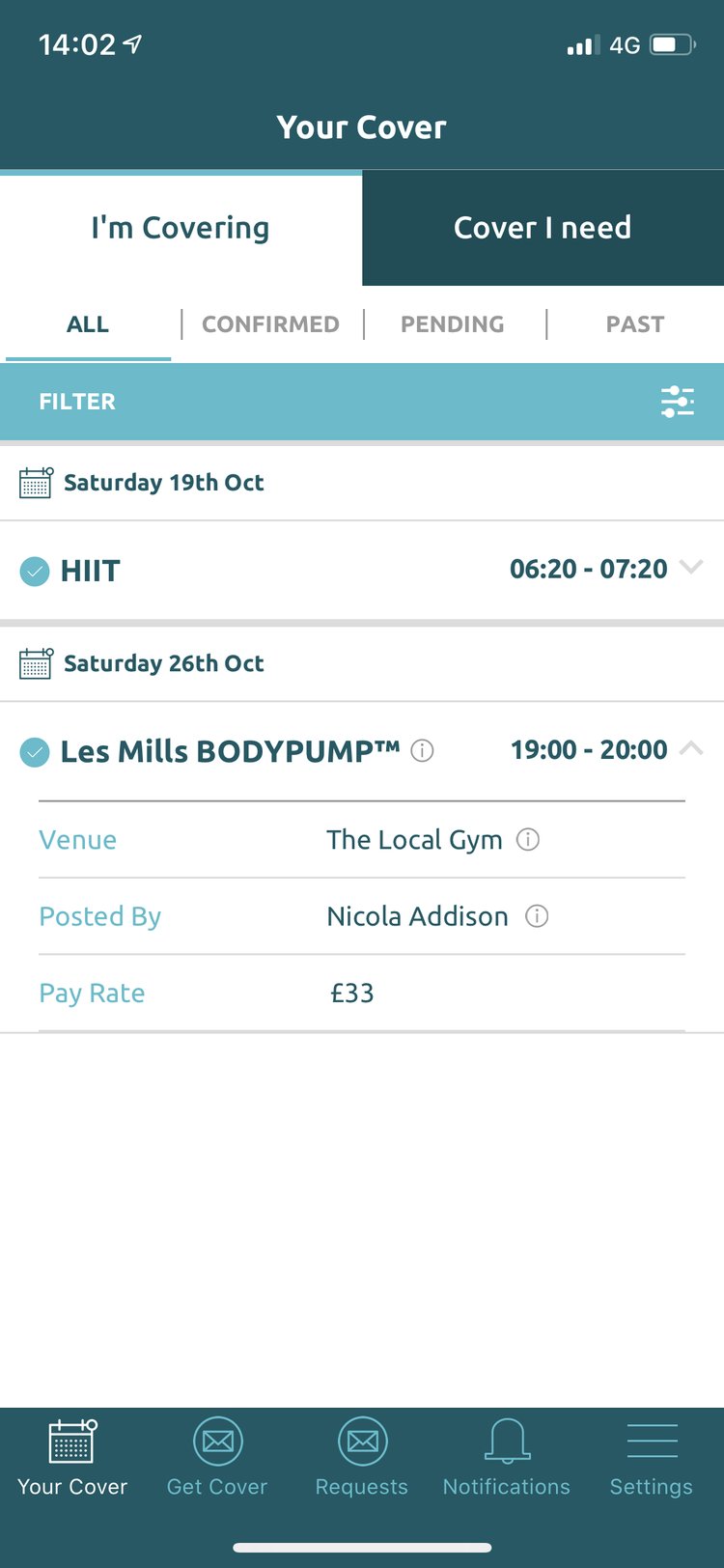
All, Confirmed, Pending and Past
There are four sections within each tab:
All
Lists every cover request.
Confirmed
Every class that has been confirmed, shown with a blue tick. In ‘I’m covering’ this means you have been selected to cover that class. In ‘Cover I need’ it means another instructor has been confirmed to cover you.
Pending
Classes that are yet to be confirmed. These are still in progress and are shown with a yellow circle.
Past
Covers that have already happened.
When you are confirmed to cover
Expand the cover card by tapping the arrow to see the date, time and pay rate of the class, the venue name and the instructor who posted the request.
Tap the venue name to open the venue profile, with contact details, Google Maps and further information. Tap the instructor’s name to view their profile.
From Your Cover > I’m covering you can also add or remove an upcoming cover from your phone calendar.
After you’ve taught the class, expand its card in ‘Past’ to see invoicing details, so you know who to invoice and how.
When someone is confirmed to cover you
When a cover instructor is confirmed to cover you, you’ll get a push notification. The cover card in Your Cover > Cover I need will now have a blue tick, and you can see the name and view the profile of who will be covering your class.
The venue will have been informed as well, so everyone is up to date with who is teaching the class.