Creating your instructor account
Download the app, verify your email and set up your profile, documents and cover preferences so you start receiving the right cover requests.
5 min read
Accessing Cover Ninja
Cover Ninja is available for mobile download in both the App Store and the Google Play store. Once you have downloaded the Cover Ninja app to your phone, you can create an account by selecting ‘sign up now’.


Verify your email
The first step is to verify your email address. Enter your email address and choose a password, then tap ‘Verify account’.
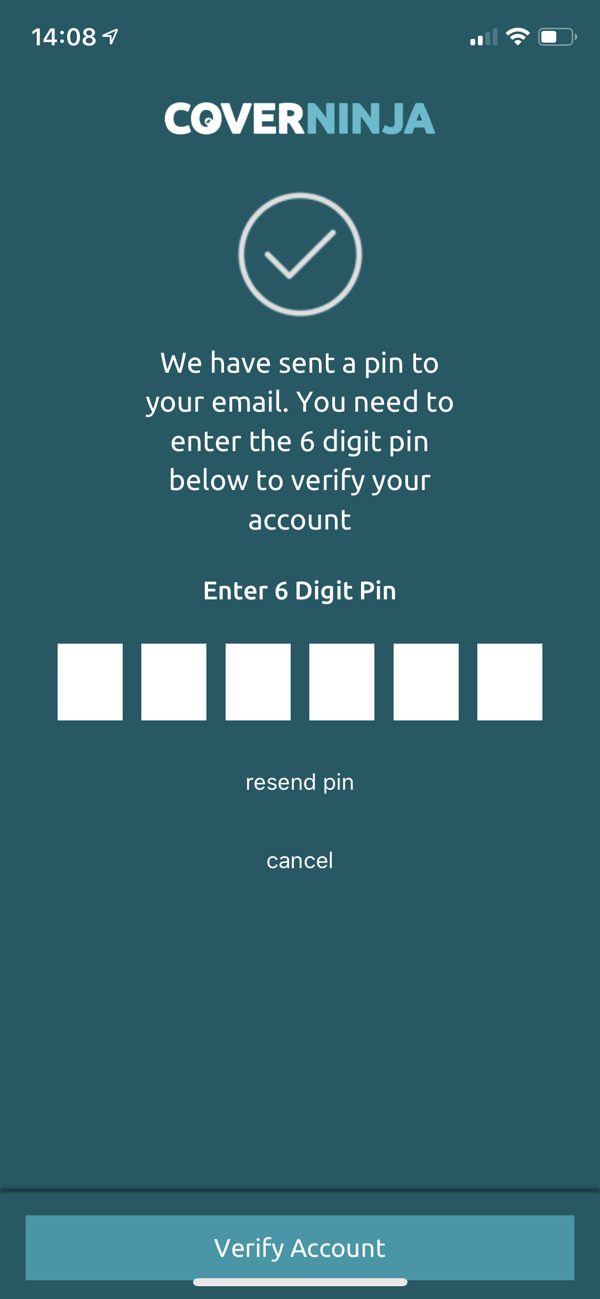
You’ll receive an email from Cover Ninja with a 6 digit pin code. Type it into the app and tap ‘Verify’. Once verified, the app will move you forward.
Create your account
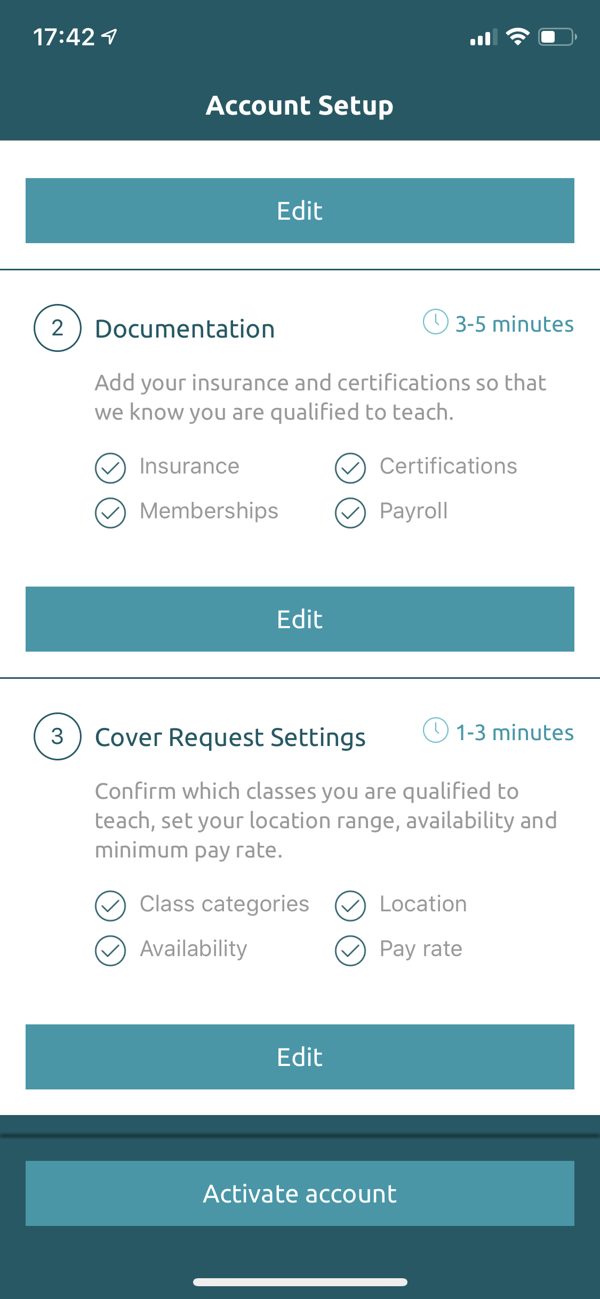
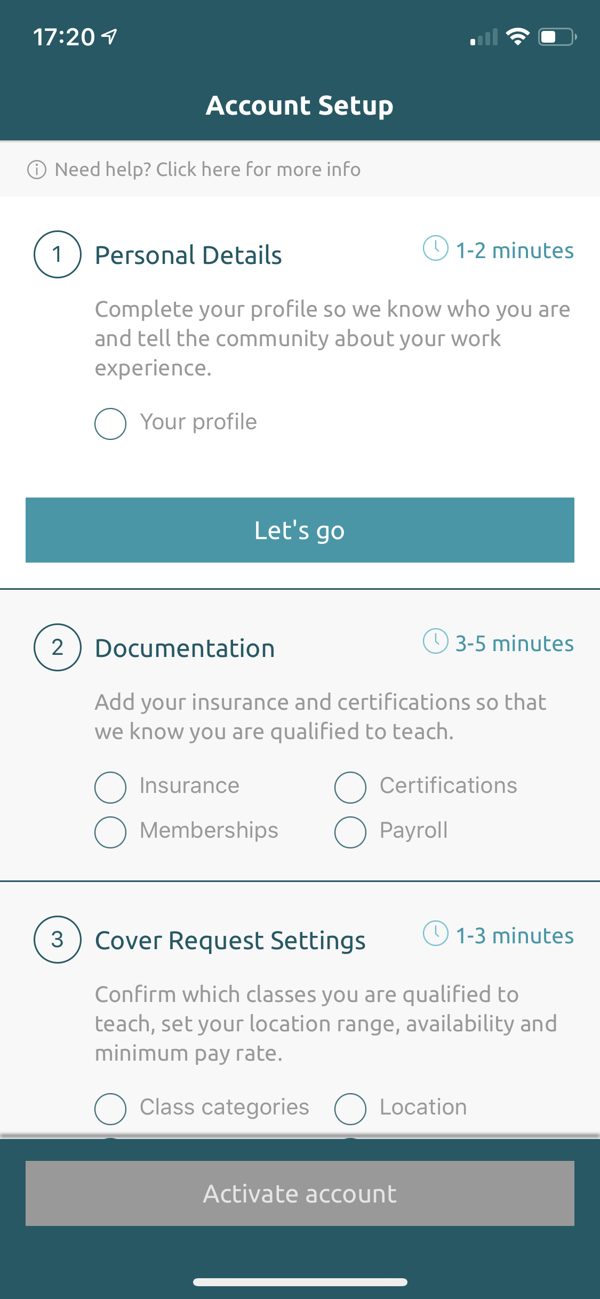
Creating a Cover Ninja account takes minutes, across three stages: personal details, documentation and cover request settings.
Anything marked with a red * must be completed before you can move on to the next stage.
Personal details
Add your name, contact number and profile image. You can also include a short biography and details of your work experience.
Documentation
There are four sections of documentation. Two are compulsory and two can be skipped. Photos can be taken through the app or uploaded from your phone’s image folder.
Insurance
RequiredIf you are employed by the Venue that invited you, your insurance will be covered and you will be able to skip this section. If you would like to receive cover requests from other venues as a freelancer, then upload a current insurance document with its name (e.g. CIMSPA Insurance), expiry date and a photo of the document.
Certification
RequiredUpload at least one teaching qualification with its name (e.g. Yoga certificate) and a photo. No expiry date needed. Tap ‘Add another’ for multiple qualifications so venues can see you’re qualified, then tap Save & Continue.
Memberships
OptionalIf you are a member of REPs or CIMSPA, add the membership type, number, expiry date and a photo, then tap Save & Continue. Otherwise tap ‘Skip’.
Payroll
OptionalIf you’re already on the payroll for certain brands, select them here. If not, just tap ‘Skip’.
Class categories
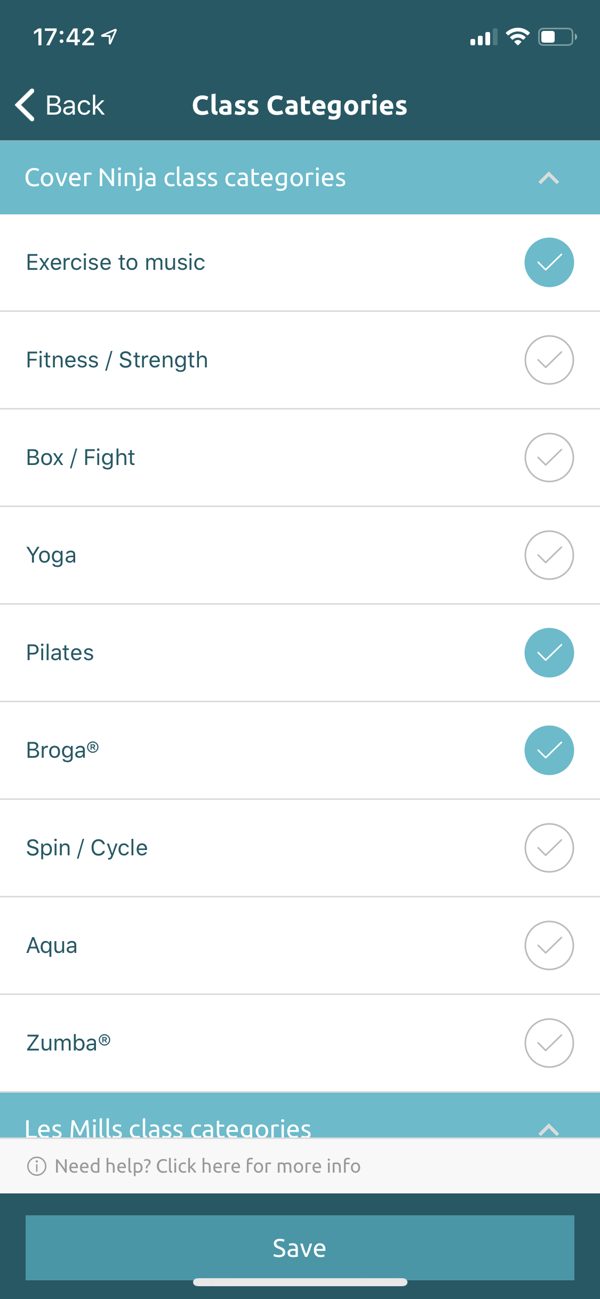
Your cover request settings make sure you only receive requests that are targeted and relevant to you. First, choose every category of class you are qualified to teach.
One category can include multiple classes. TRX falls under Strength / Fitness, while aerobics or dance fitness falls under Exercise to Music.
Teach Les Mills classes? Make sure you select every Les Mills class you teach.
Location
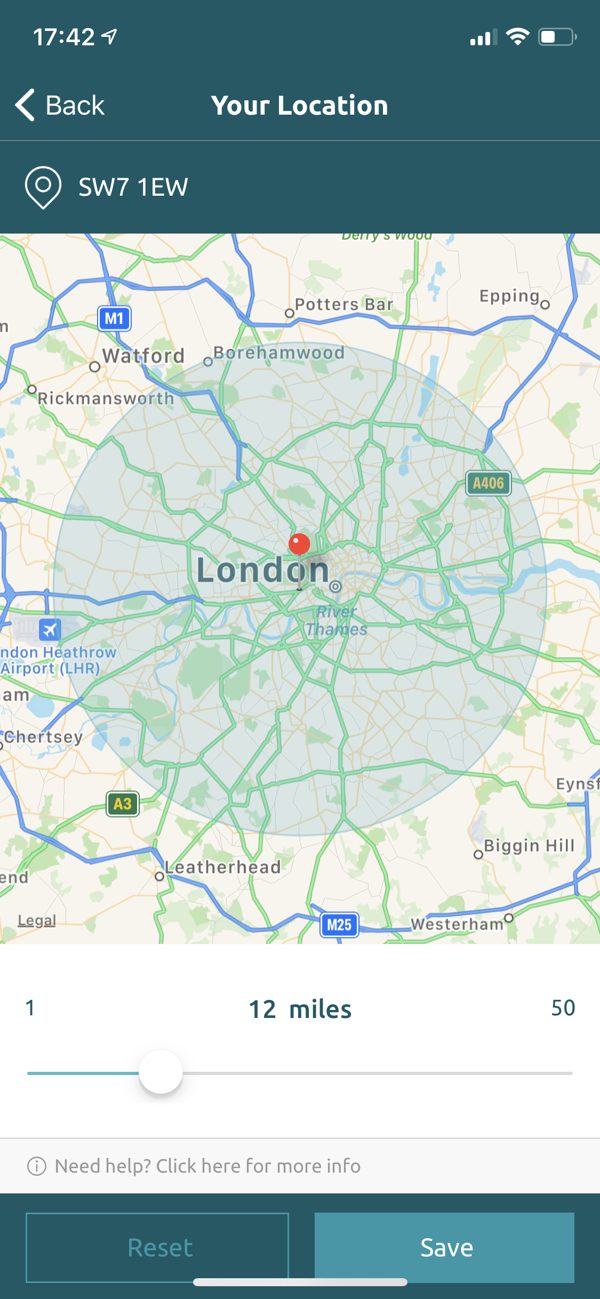
Set the area where you’d like to be considered for cover. Enter an address or use your current location, then choose the distance around it.
You’ll only receive requests for venues inside your range, so you won’t get requests that are too far from where you live or work.
Help is always available! Most screens have an information button with helpful tips.
Availability
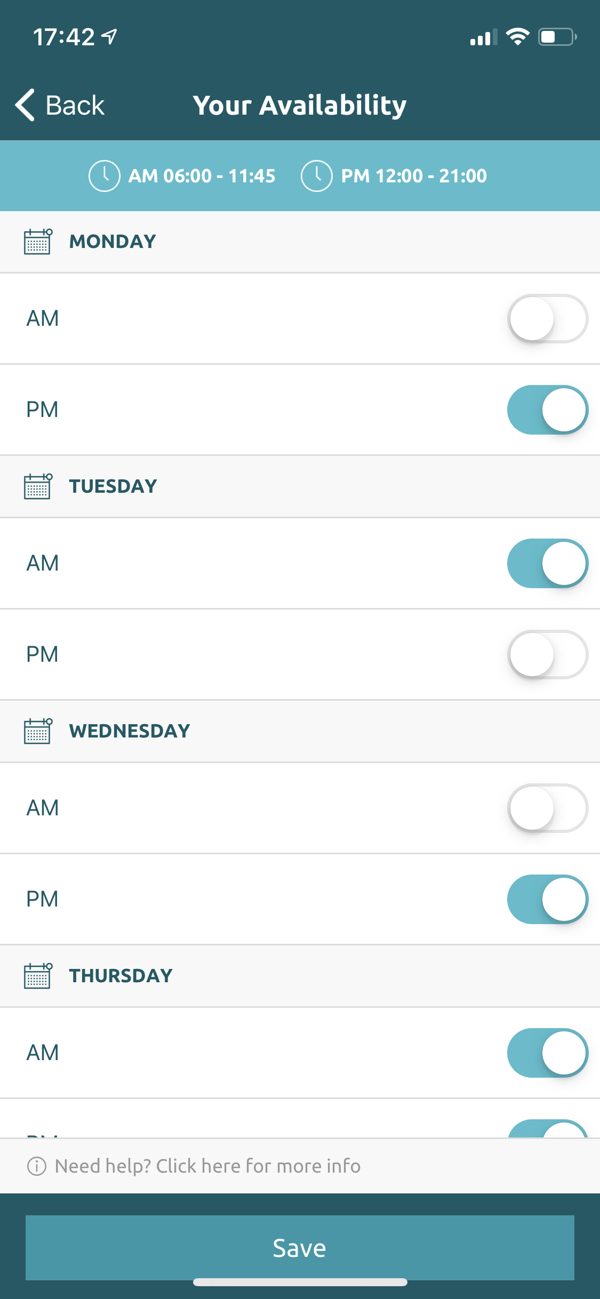
Availability is ON for all days and times by default. If you never want requests for, say, Monday mornings or Friday evenings, just tap the toggle to off.
Many instructors keep everything ON, so they see every request and accept or decline as they come in.
Minimum pay rate
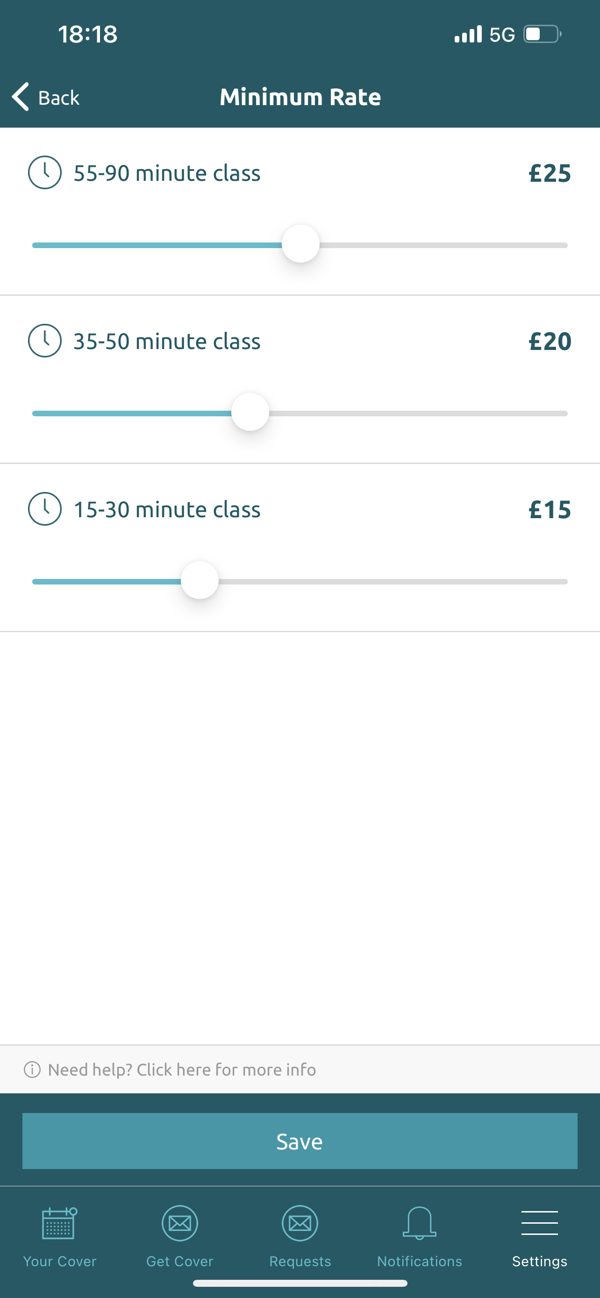
Set the lowest pay rate you’d like to receive requests for. Many instructors leave this at £0. Don’t worry, this doesn’t mean you will be paid £0 for the class. It just means you’ll see every relevant request, no matter what the pay rate is.
If you set £20 for 55–90 minute classes, you won’t receive requests for 60 minute classes paying less than £20.
Don’t set this higher than your usual clubs pay, or you’ll miss out on covers.
Activate your account
Once every section is complete, tap ‘Activate account’. Your Cover Ninja account is now live and you can post and accept covers.