
Prioritising an instructor for cover
Prioritise the instructors you’d like to cover for you: choose your date and class, then pick your preferred instructors before posting.
3 min read
Choose the date
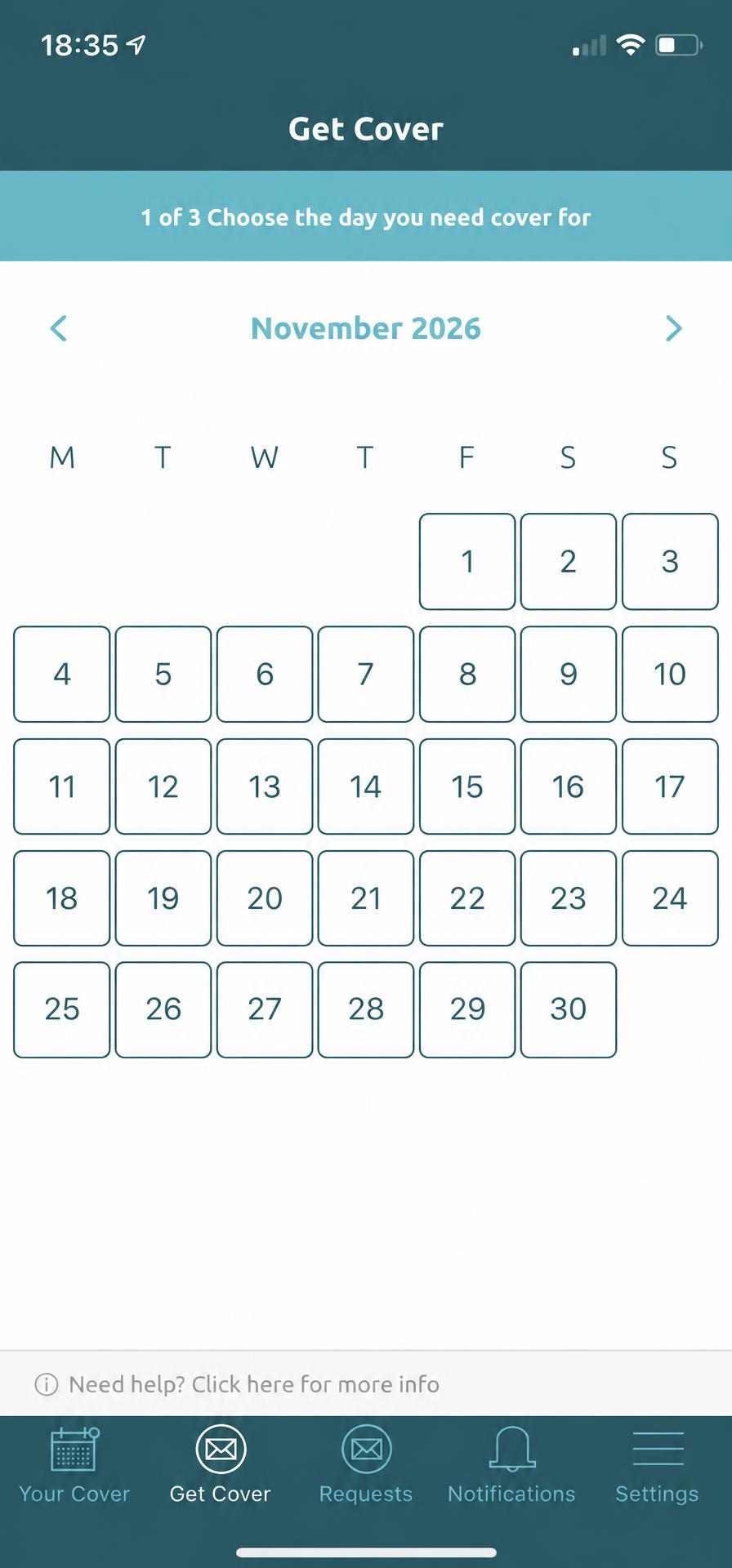
Whenever you need cover for a class, simply hit ‘Get Cover’ in the middle of the bottom tool bar.
Your venue has already programmed your classes into the app. Choose the date you need cover for and your classes for that day will appear.
Select your class
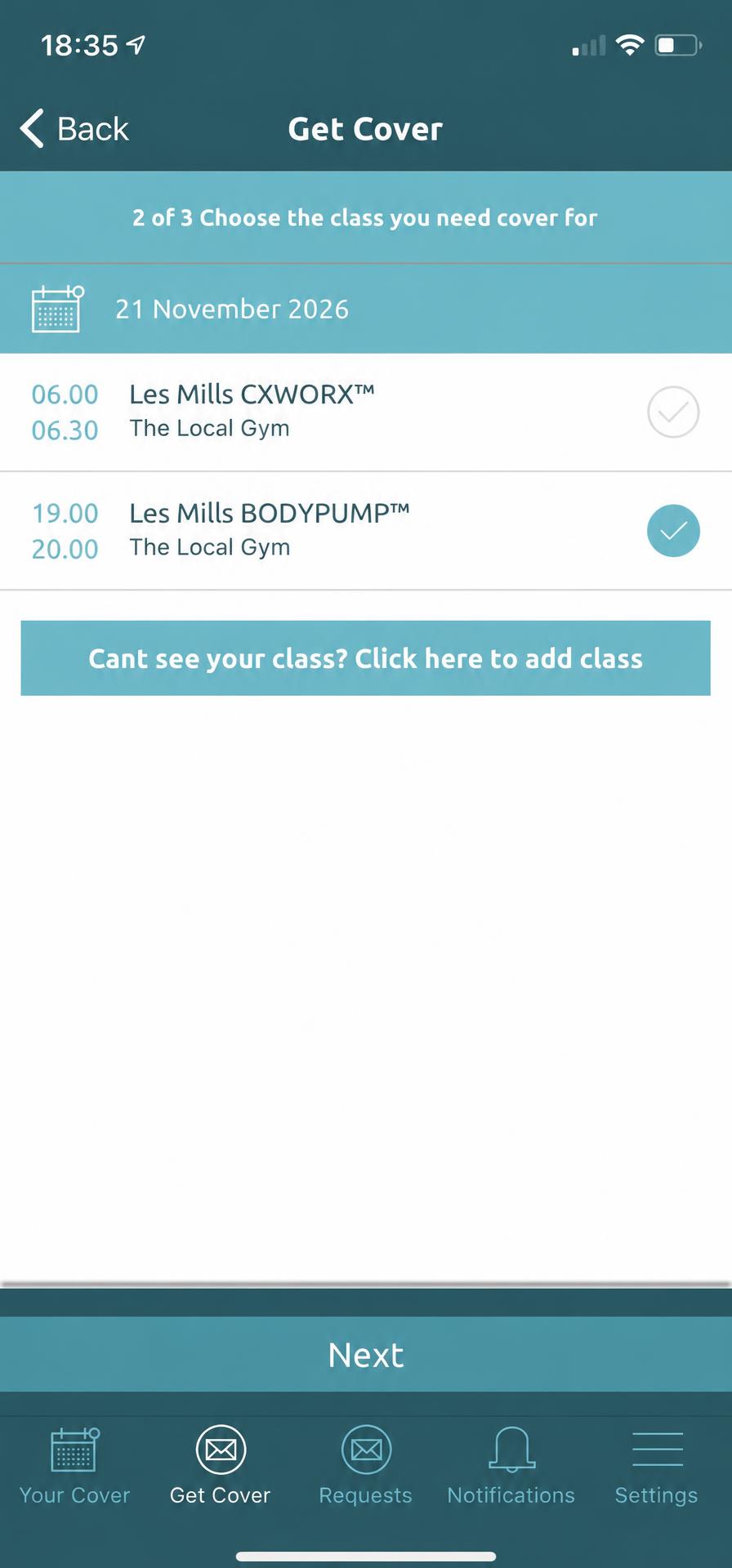
Select the class you need covered, then tap ‘Next’.
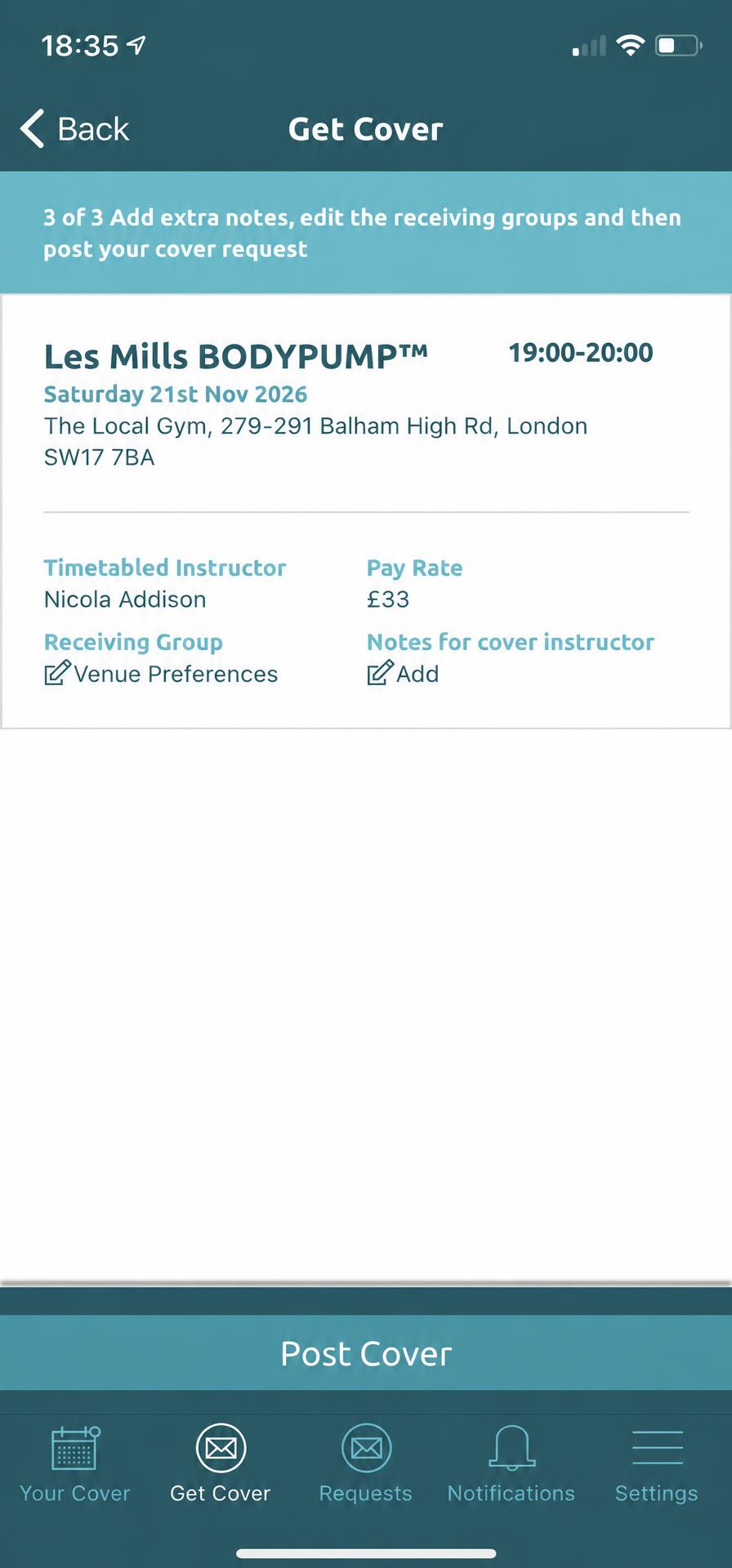
The next screen shows your class details, including the time, date, location, timetabled instructor and pay rate. This information has been pre-loaded by your venue.
Prioritise your instructors
Your venue has set its preferences for who receives cover requests. You can also prioritise instructors you’d like to cover for you.
Edit the receiving group
On your class details screen, tap the edit button beside ‘Receiving Group’.
Open your instructor list
Tap ‘Prioritise Individual Instructors’ to see the instructors your venue has approved.
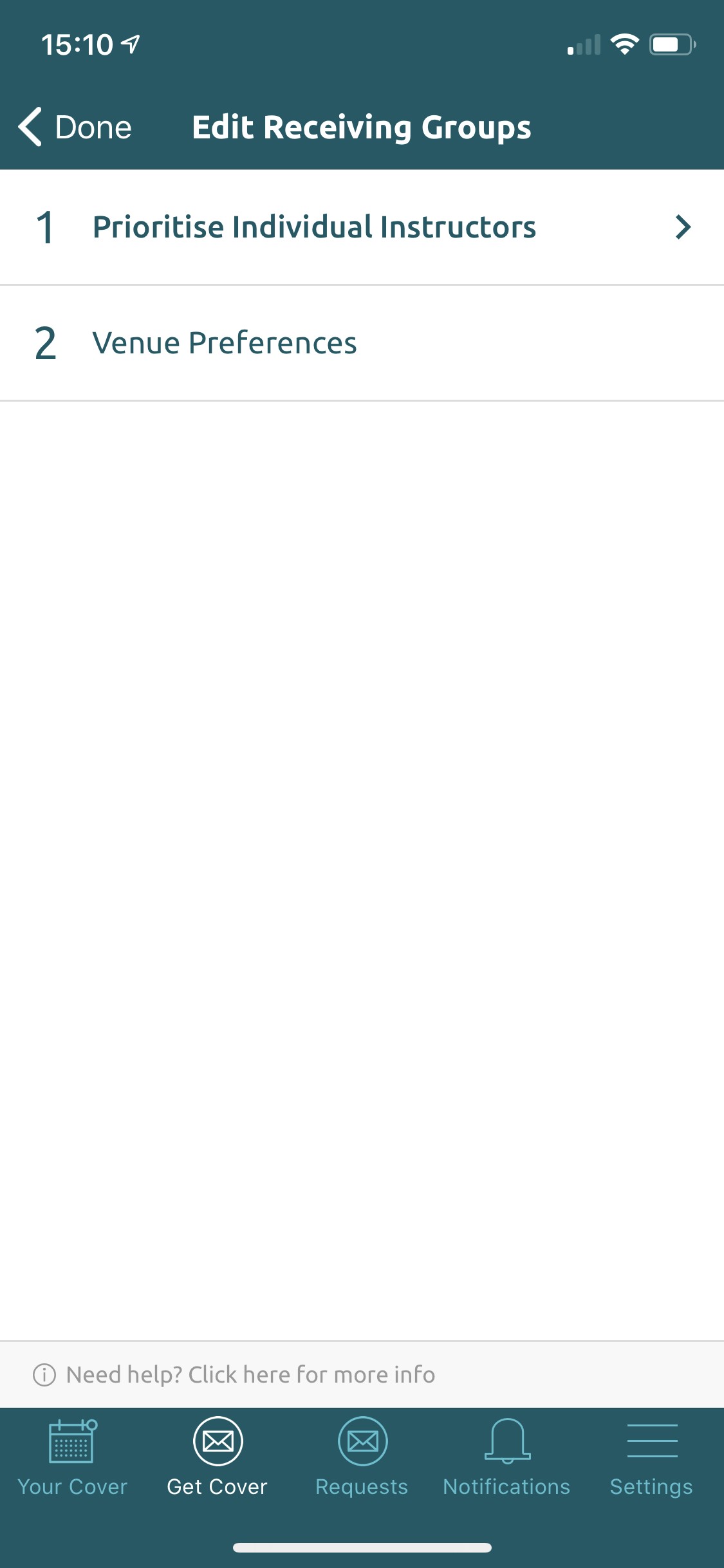
If someone has covered for you before but isn’t appearing, contact your venue to make sure that instructor has been linked to the venue.
Choose your preferred instructors
Choose one or multiple instructors, then tap ‘Confirm’. Their names will appear in the receiving group ahead of the venue preferences.
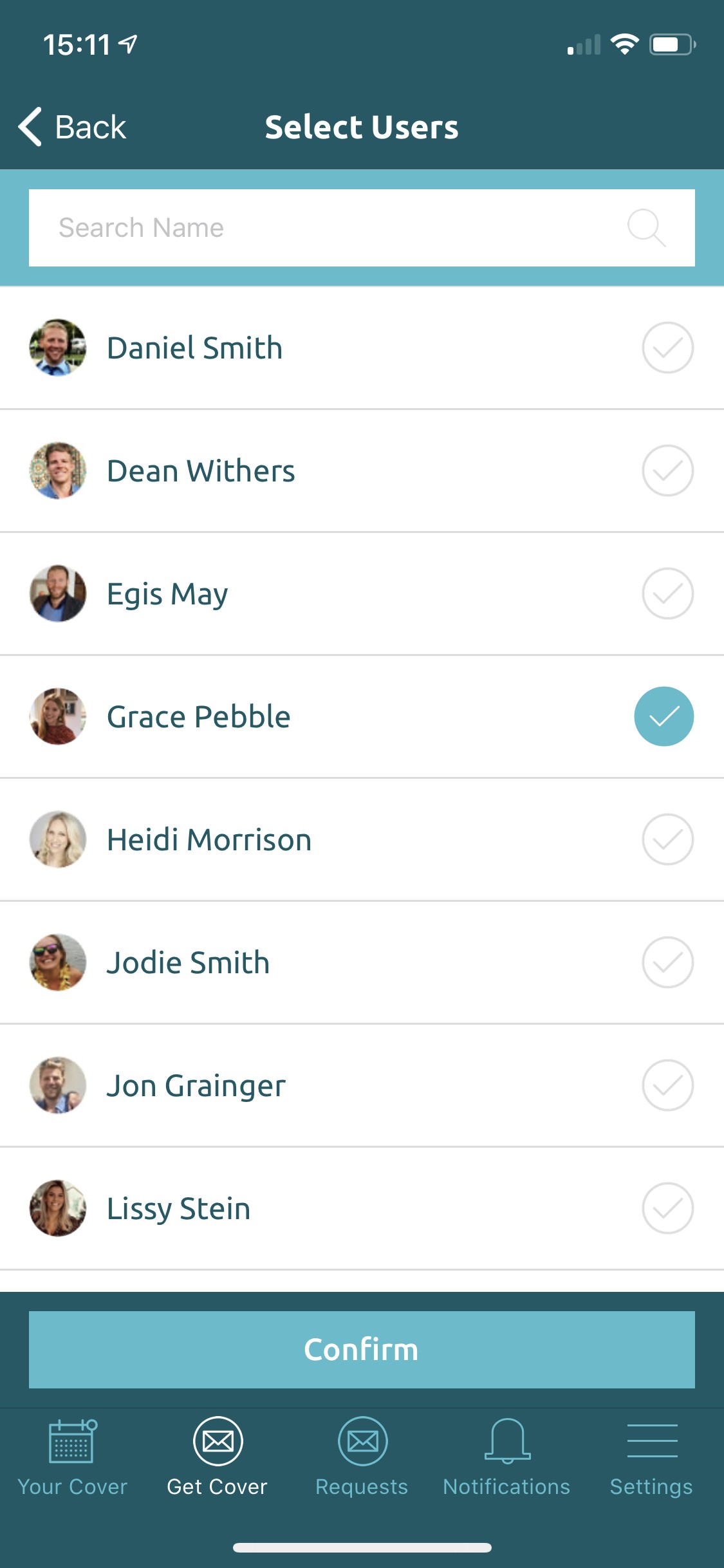
The first person to respond out of your prioritised instructors will be chosen. If none of them are available or eligible to cover, the app will choose someone from the venue’s pre-set preferences.
Review and post your request
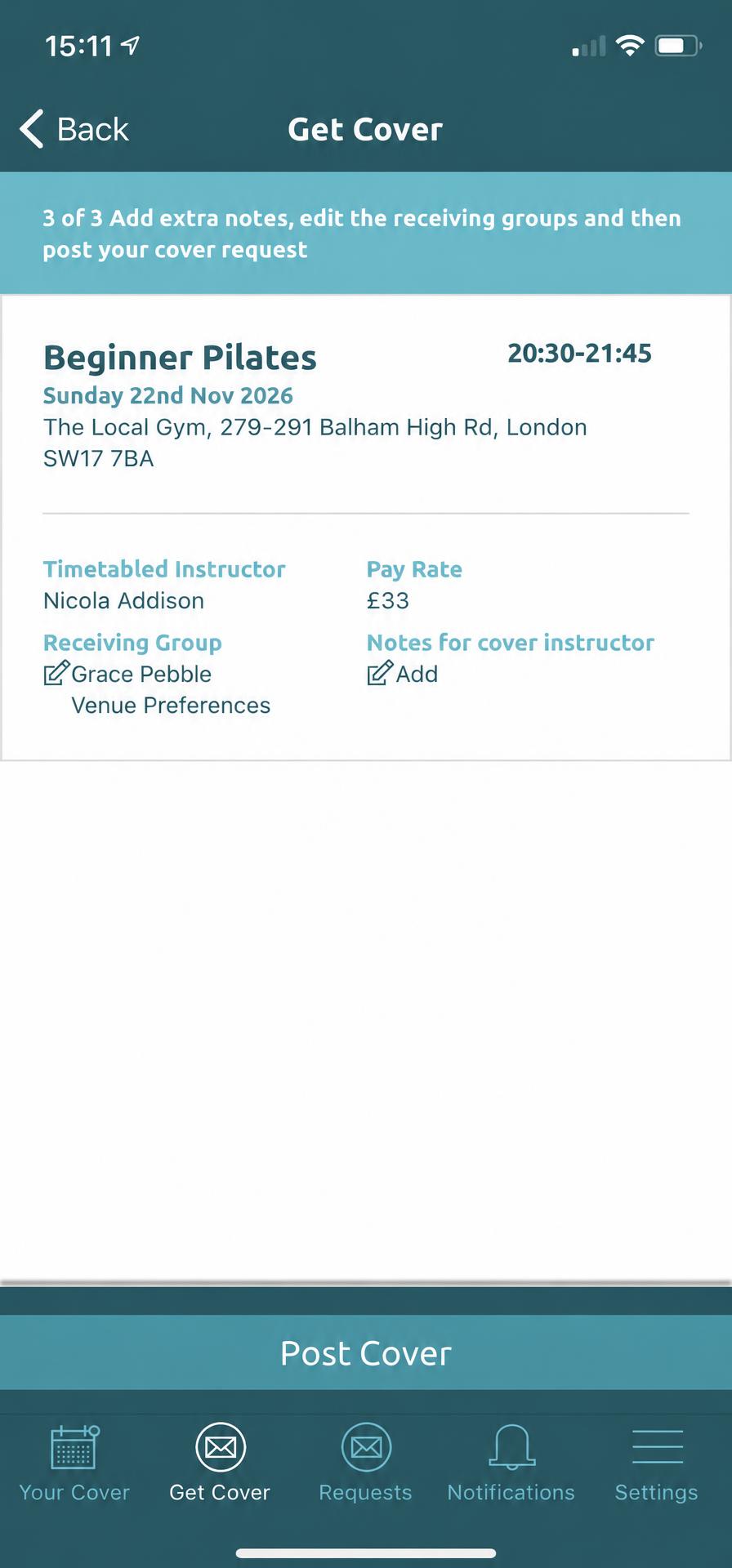
Check your class details, notes and receiving group, then tap ‘Post Cover’. Your request will go out to eligible instructors.
Return to ‘Posting a cover request’ for how to keep track of your cover.