Posting a cover request
Post a cover request in three steps: choose the date, select your class, then add any notes and post your request.
3 min read
Choose the date
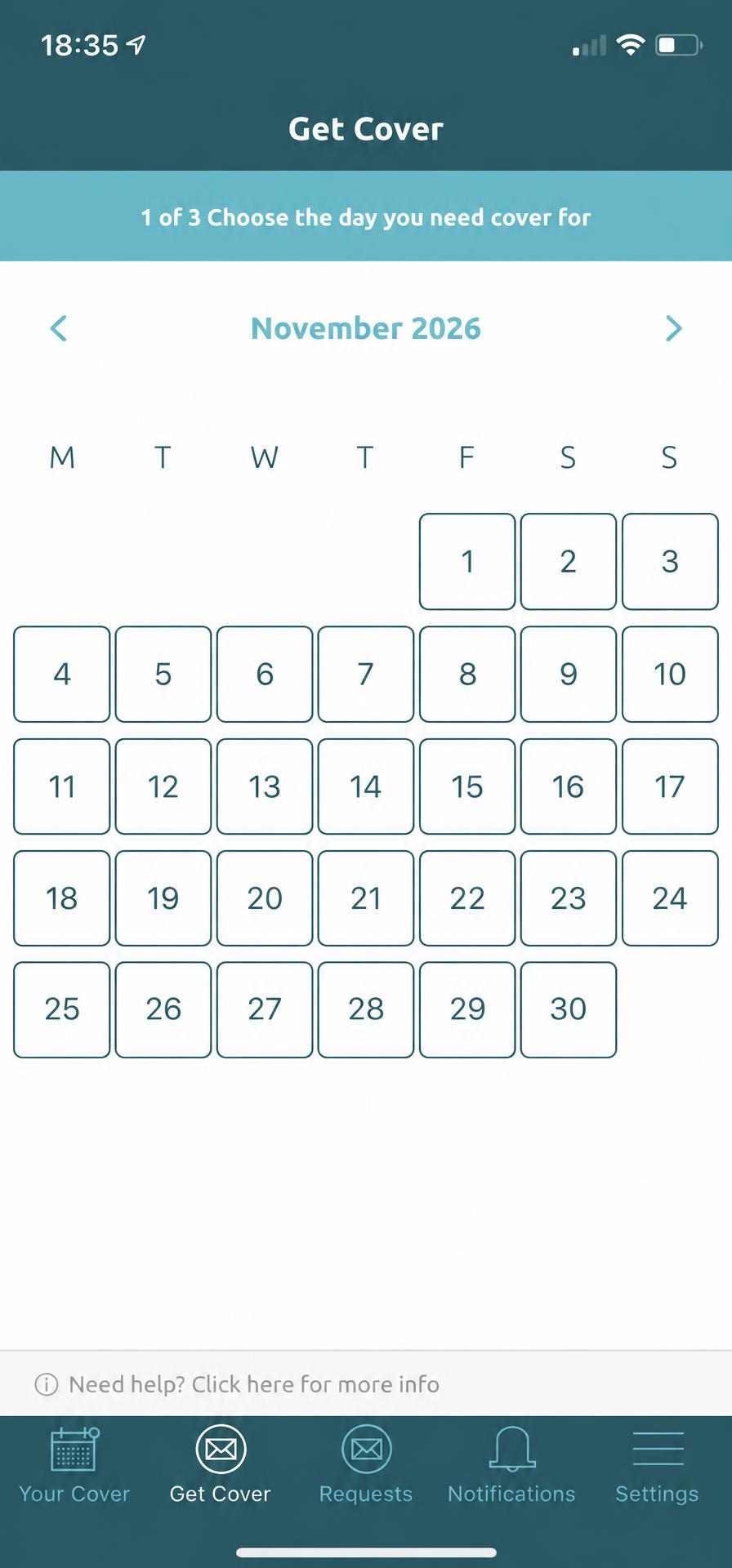
Whenever you need cover for a class, simply hit ‘Get Cover’ in the middle of the bottom tool bar.
Your venue has already programmed your classes into the app. Choose the date you need cover for and your classes for that day will appear.
Select your class
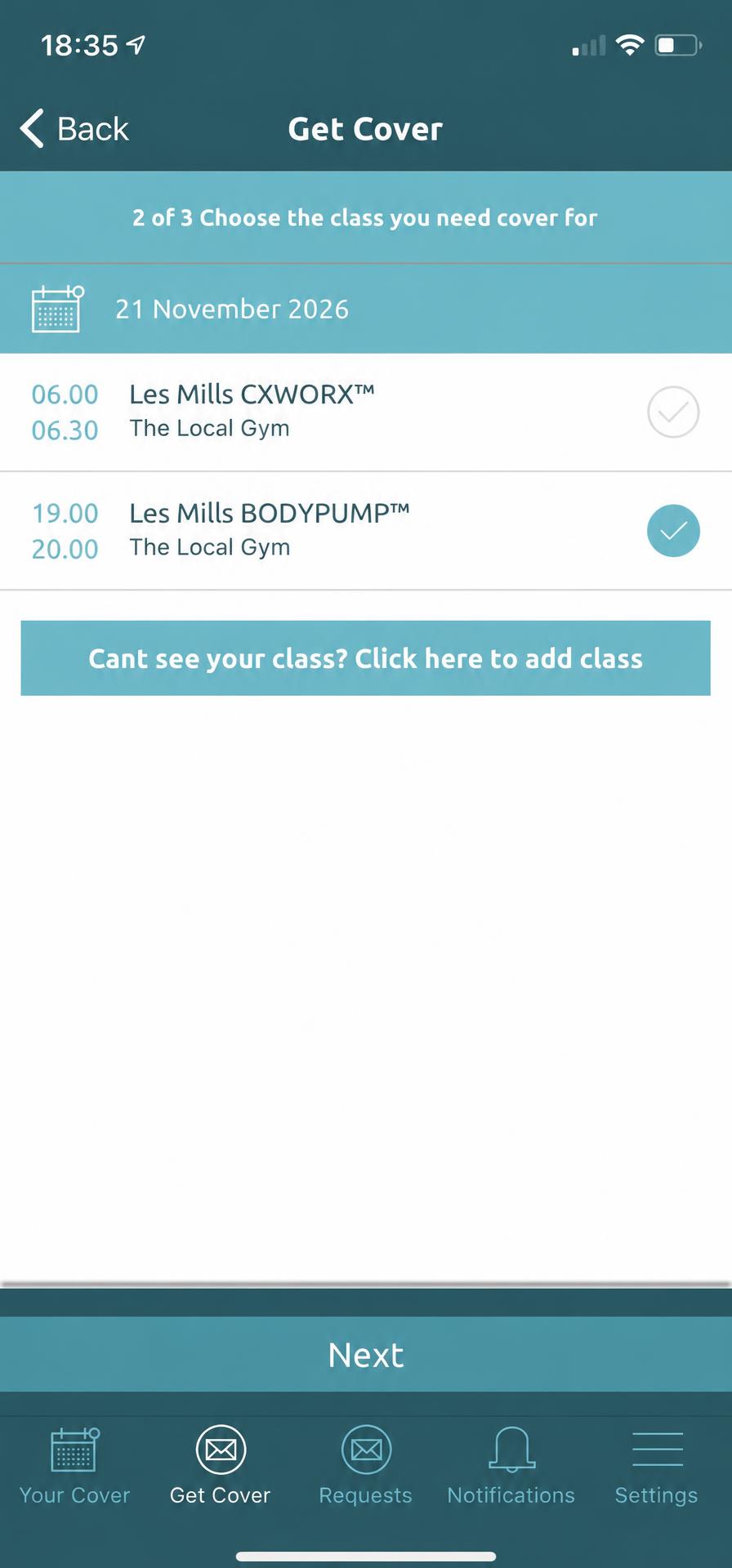
Select the class you need covered, then tap ‘Next’.
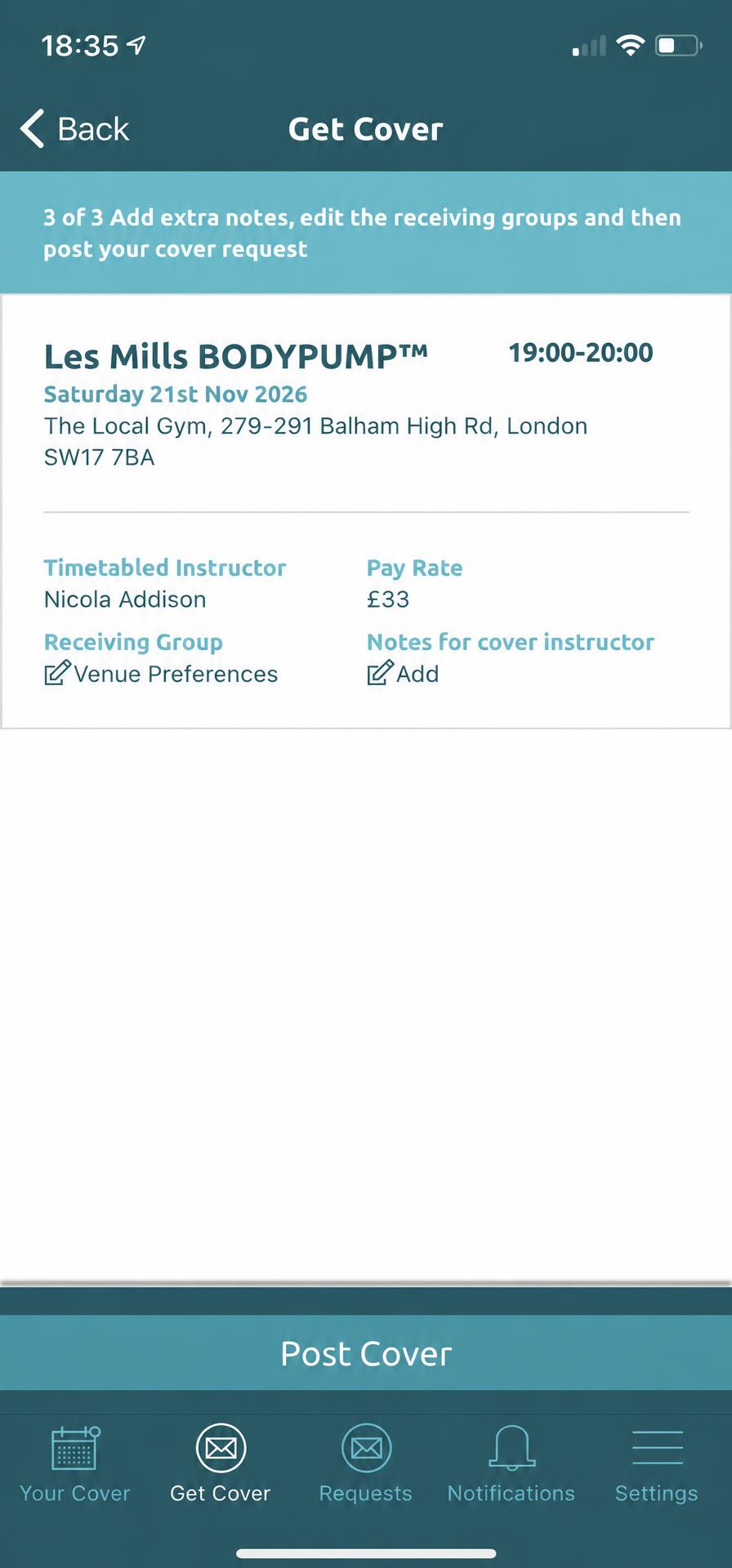
The next screen shows your class details, including the time, date, location, timetabled instructor and pay rate. This information has been pre-loaded by your venue.
Add notes and post your cover request
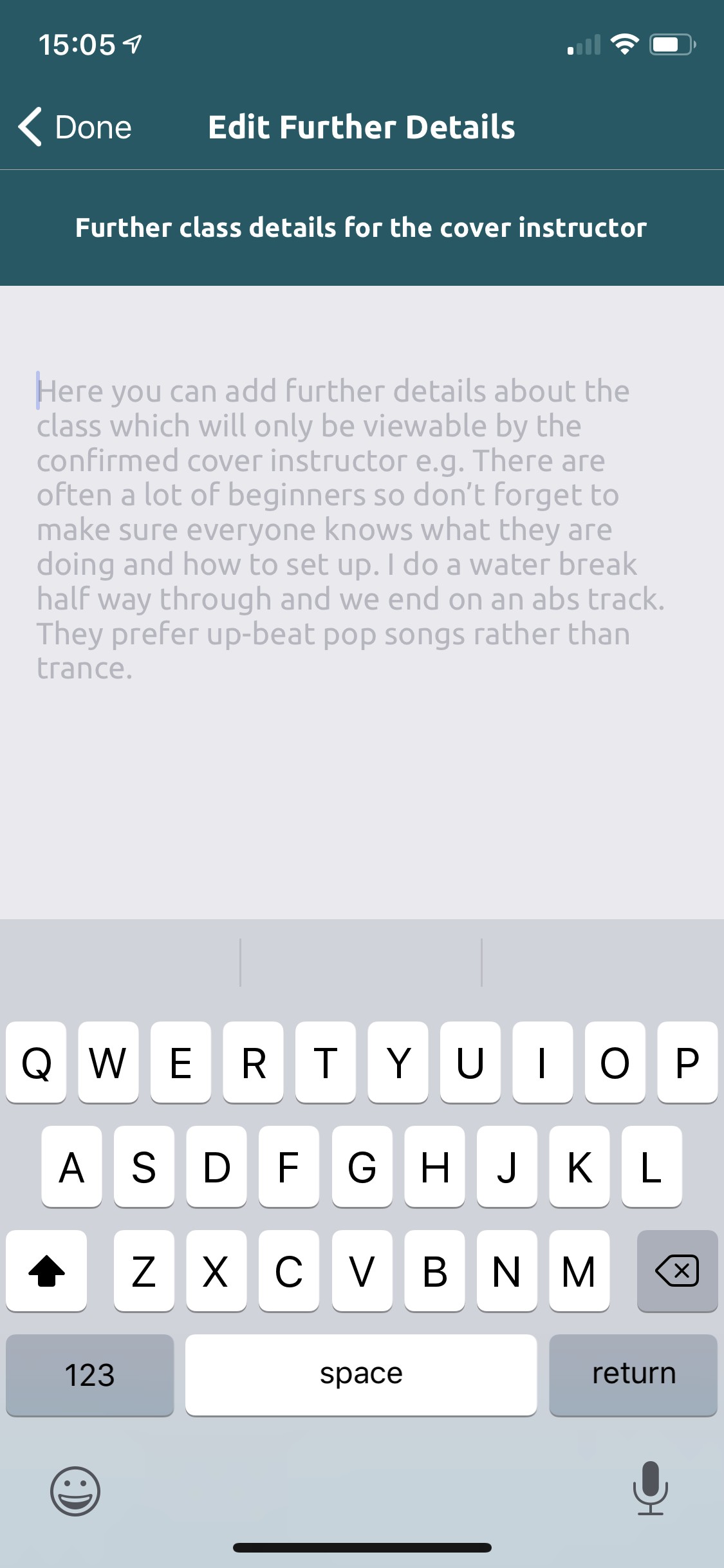
If you’d like to share extra information about your class, tap ‘Add’ beside ‘Notes for cover instructor’. Add your notes, then tap ‘Done’.
You might mention that there are often beginners in the class, how you usually structure the session or the music your participants prefer.
These notes are only viewable by the confirmed cover instructor.
Post your cover request
If you don’t want to prioritise anyone, simply check your class details and add any notes, then tap ‘Post Cover’. Your request will go out to eligible instructors.
Keep track of your cover
Once a cover instructor is confirmed, you’ll receive a push notification and an email letting you know who is covering. Your venue will also be informed that cover has been confirmed for your class.
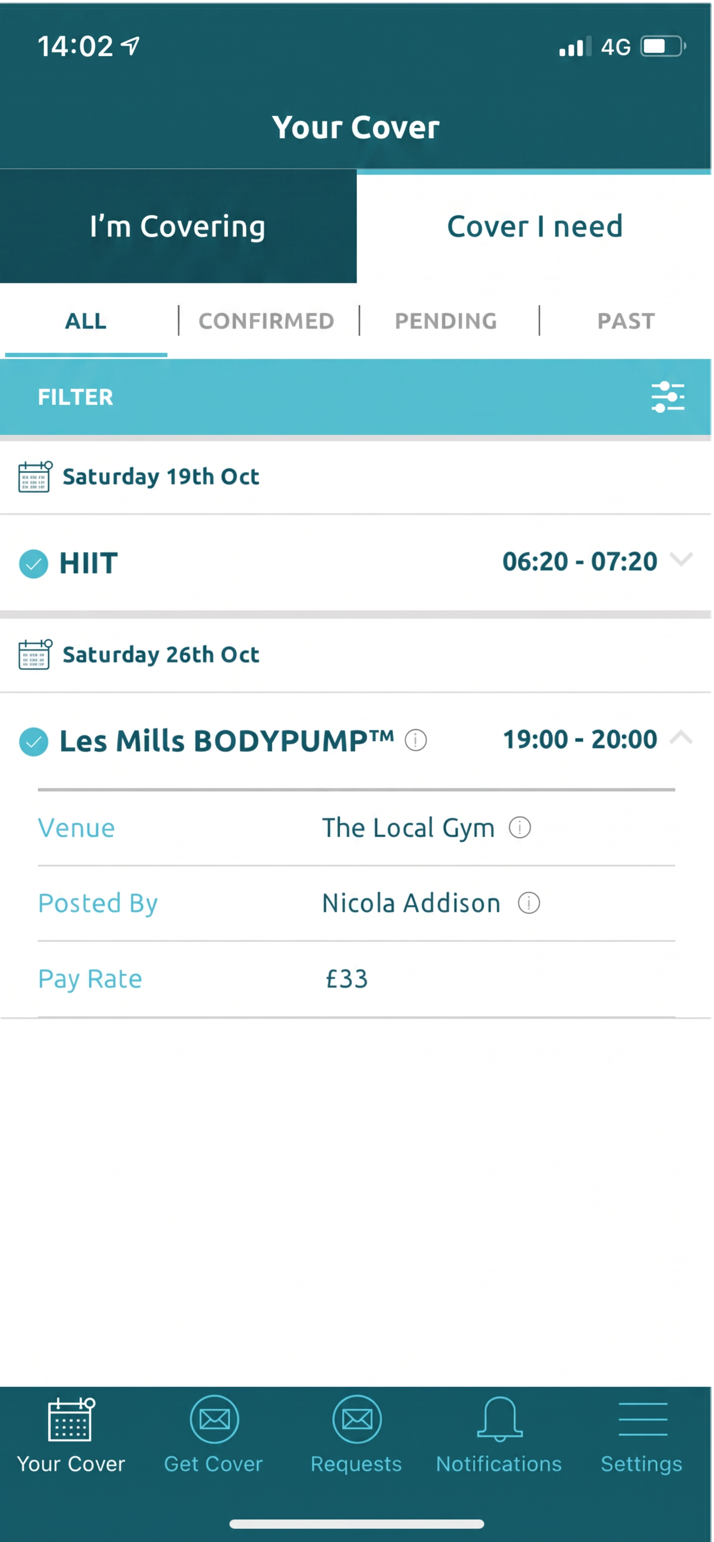
To view the status of your request, open ‘Your Cover’ and select ‘Cover I Need’. Tap the class to expand it and see more information.