Requests
See every cover request you’re eligible for, say ‘I can do this’ or decline, and find out how and when you’re confirmed.
3 min read
Your eligible requests
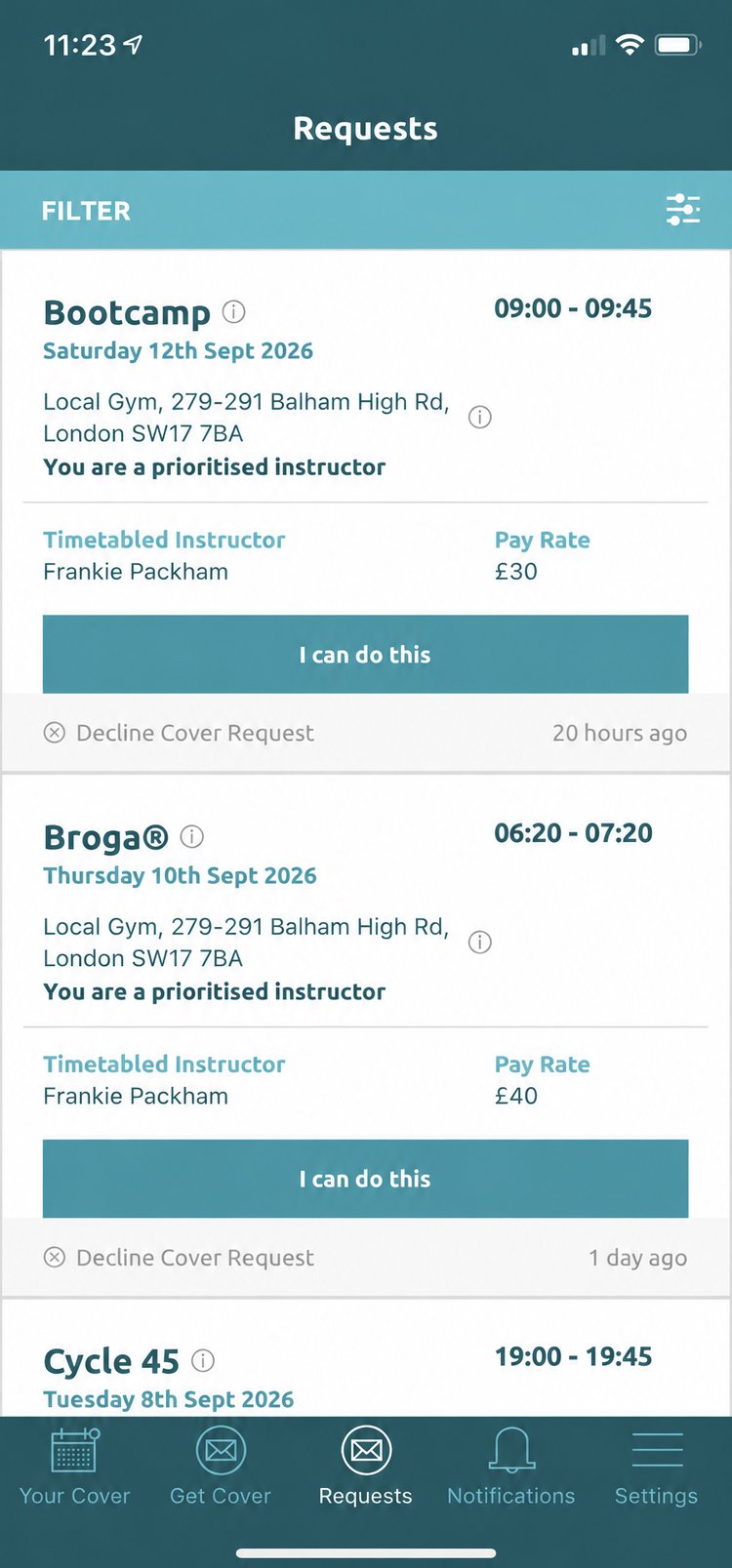
In the Requests tab you will see all the cover requests you are eligible for. To be confirmed to cover, you must confirm via the Cover Ninja app.
Each request shows the name of the class (tap to read a description), the date and time, the pay rate and the venue (tap to bring up the venue profile).
Accept or decline
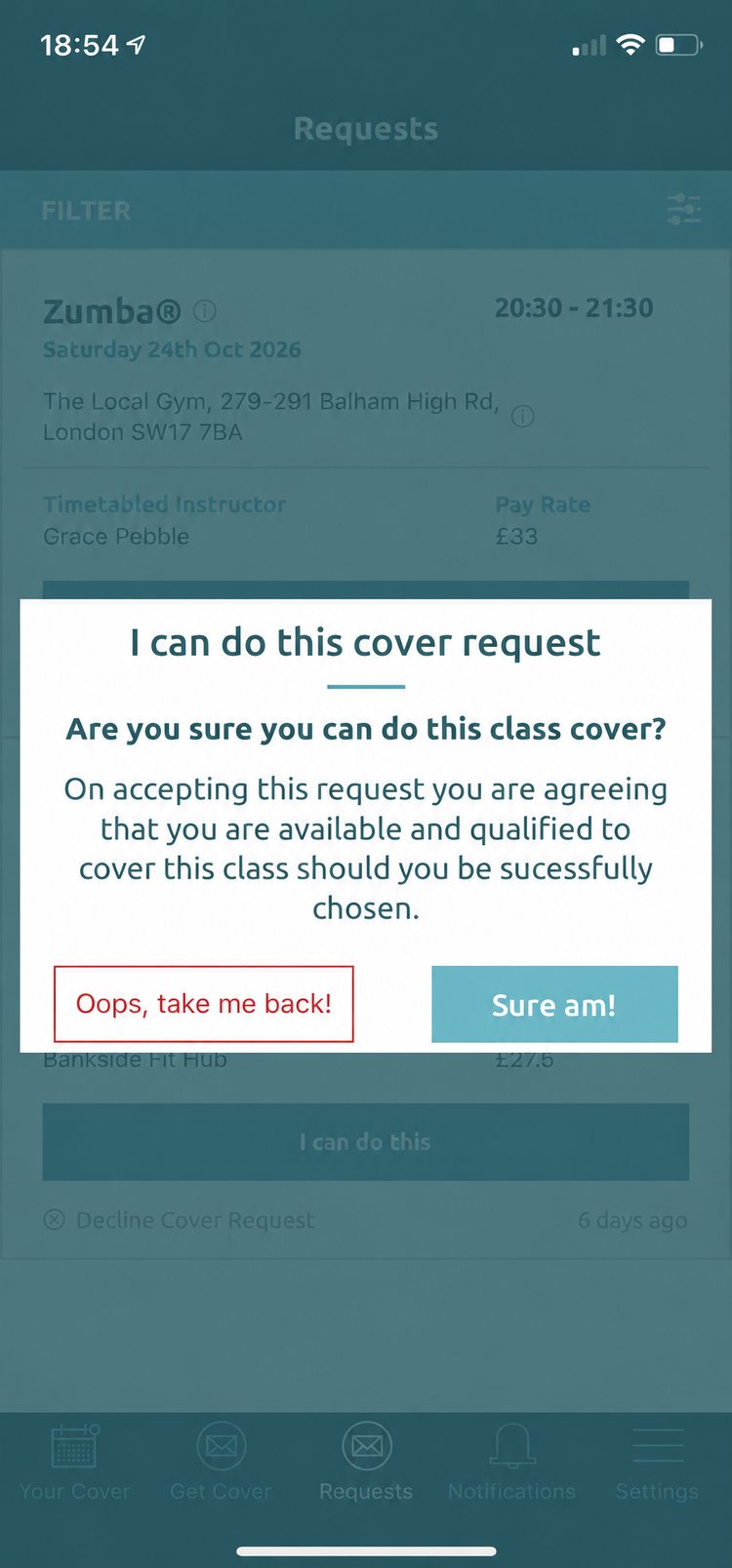
If you would like to be considered for the cover, tap ‘I can do this’ and confirm with ‘Sure am!’.
If you don’t want to cover, tap ‘Decline Cover Request’. This removes it from your Requests tab and takes you out of the running.
Getting confirmed
If you’re a prioritised instructor
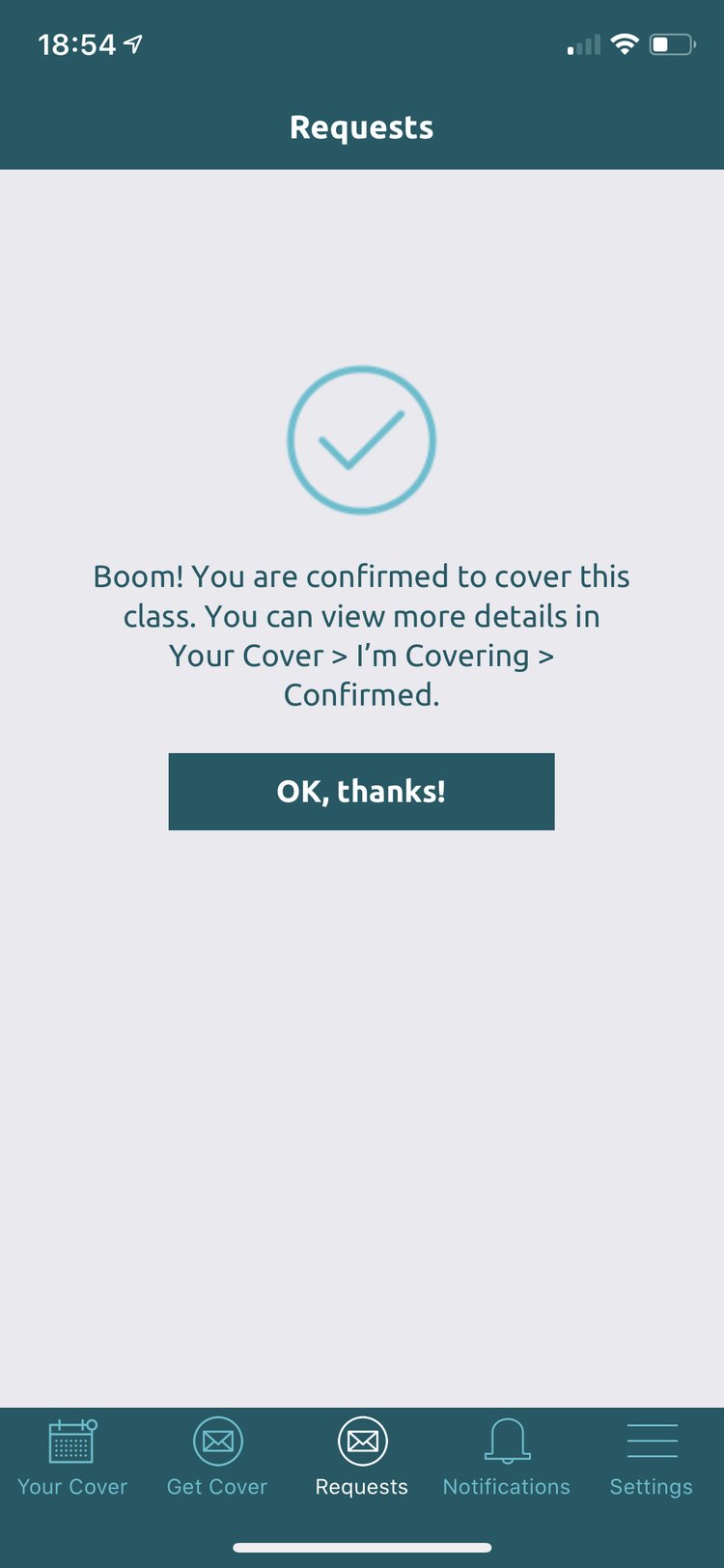
The request may say ‘You are a prioritised instructor’. If it does, tapping ‘I can do this’ confirms you for the class immediately. You’ll find it in Your Cover > I’m covering > Confirmed.
If you’re not prioritised
You’ll go into a pool of instructors and find out after a time period whether you’ve been successful. The request moves to Your Cover > I’m covering > Pending. If you’re successful you’ll be notified and it moves to Confirmed.
Once you’re confirmed, you can see much more information about the class and venue in the Your Cover section of the app.